How to Make Fade Notes in BeepBox: Volume Fades Explained
To make fade notes in BeepBox, edit the note's volume rather than its pitch. In the pattern editor, start above or below an existing note and drag vertically to shape its loudness. A longer note gives you enough space for a gradual fade-in or fade-out, while a short note is better for a quick accent or gated effect.

Quick Navigation
How to Make Fade Notes in BeepBox: The Short Answer
BeepBox does not require a separate “fade” button for an individual note. Its documented advanced gesture is enough: drag vertically from above or below an existing note to adjust that note's volume. The important distinction is where you begin the gesture. Dragging directly from a note is associated with pitch bending; beginning above or below the note is the safer starting point for a volume fade.
For a clean result, make the note long enough to hear the change, edit a small amount, and play the pattern after each pass. If the note disappears too early, the volume curve is too steep. If the fade is hard to hear, the starting and ending levels are too close or the note is too short.
| Goal | What to do | What to listen for |
|---|---|---|
| Fade a single sustained note | Start above or below the note and make a gradual vertical volume edit across its duration. | The note should get quieter without an unexpected pitch slide. |
| Make a quick pluck | Use a short note or a sharper volume change near its end. | The attack stays clear and the tail does not smear into the next hit. |
| Fade in a melody | Begin with a lower volume shape, then rise toward the note's normal level. | The melody arrives smoothly instead of appearing at full volume. |
| Fade out a section | Edit the lead, bass, drums, and support layers together, or use a fork's modulation tools when available. | The musical balance should shrink together rather than leaving one loud part behind. |
Step-by-Step Fade Note Workflow
- Choose a note with enough duration. Start with a held lead, pad-like tone, bass note, or sustained chord. A one-step percussion hit may be too short to show a useful curve.
- Play the pattern once before editing. Notice the note's normal attack, sustain, and release. This gives you a reference so you do not mistake a quieter instrument for a successful fade.
- Begin above or below the note. Use the empty space around the note to enter the volume gesture. Avoid dragging through the note itself when your goal is volume, because the direct note gesture can bend pitch.
- Make a small vertical change. Do not pull the first edit from maximum to minimum. A small change is easier to hear and easier to undo if the result is too abrupt.
- Shape the ending or beginning. For a fade-out, lower the volume as the note approaches its end. For a fade-in, start lower and move toward the normal level. The editor version or fork may show the contour differently, so trust the playback more than the color of the note.
- Check the next note. A fade is only useful when it makes the transition cleaner. Leave a little space before the following note, or make the following note slightly brighter so the handoff remains audible.
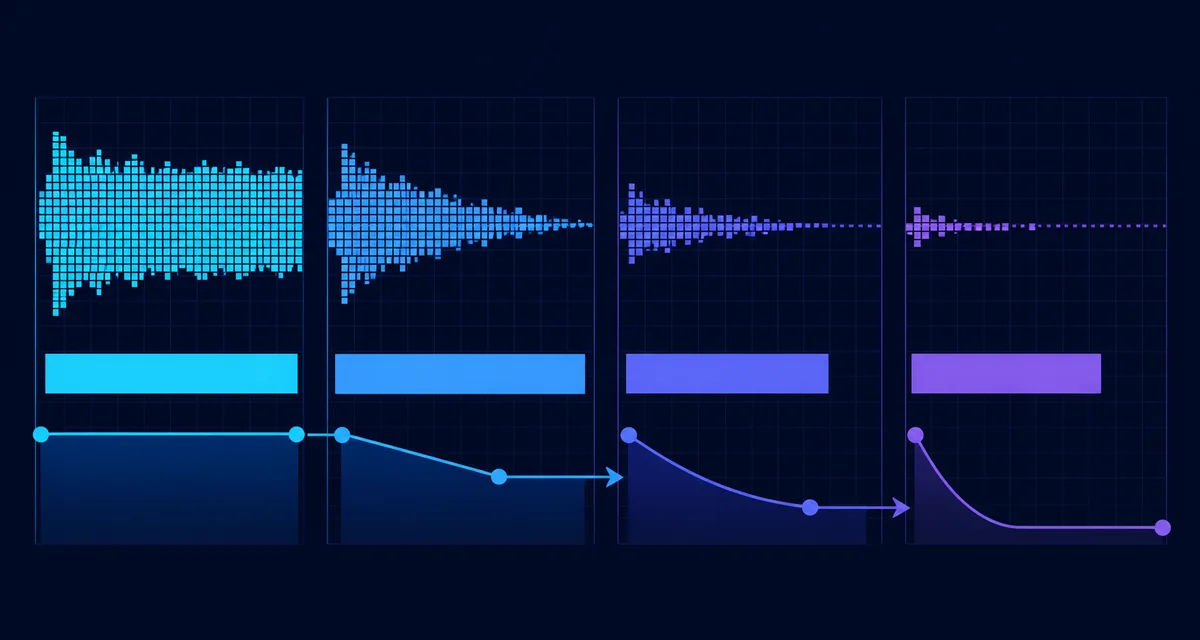
Pitch Bend or Volume Fade?
If the note glides up or down in pitch, you probably started the drag on the note rather than in the space above or below it. Undo the edit, place the pointer near the note's vertical edge, and try the volume gesture again. The exact hit area can feel small on a phone, so a mouse or stylus is often easier for the first attempt.
Fade-In, Fade-Out, and Stepped Volume Shapes
“Fade” can describe several different musical jobs. A smooth fade-out is useful for an ending or a background layer. A fade-in can introduce a lead without an exposed attack. A stepped shape can make a chiptune phrase feel like a gated effect rather than a natural acoustic swell.
| Shape | Best use | Practical starting point |
|---|---|---|
| Slow fade-in | Bring in a melody, harmony, or texture after the rhythm is established. | Use a longer note and raise the volume over more than one beat. |
| Slow fade-out | End a sustained tone or let a section make room for a new phrase. | Keep the first half stable, then make the last quarter noticeably quieter. |
| Fast fade-out | Create a pluck, digital stop, or short transition. | Use a short tail, but leave enough sound to identify the note's pitch. |
| Stepped fade | Make an intentionally synthetic gate or rhythmic volume pattern. | Use several short notes or abrupt volume changes instead of one long curve. |
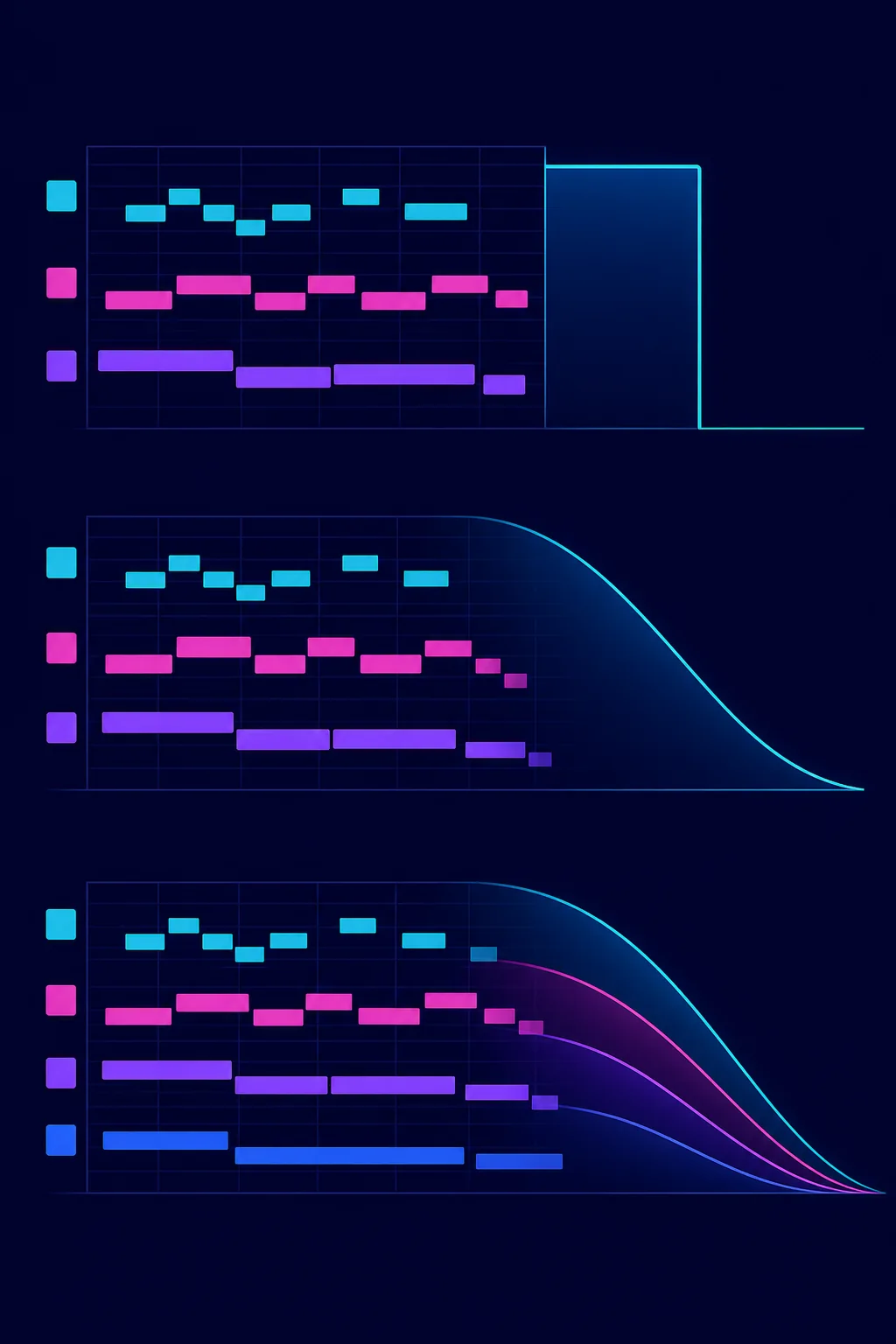
Do not make every layer fade at exactly the same time unless you want a hard stop. A more musical ending often keeps the bass or kick stable for one extra beat, lets the lead disappear first, and then lowers the remaining support. That small offset keeps the ending readable on laptop speakers and headphones.
How to Fade a Whole BeepBox Section
A query for how to make beat fade out in BeepBox can mean two different things: fading one note or fading the whole arrangement. Vanilla BeepBox's documented volume gesture is per note, so a complete section fade normally means editing the important notes in several channels. Start with the lead and bass, then check drums and sustained support layers that could keep the ending loud.
- Pick the ending window. Decide whether the fade lasts one beat, one bar, or several bars. A longer window sounds smoother; a shorter window sounds more like a stop effect.
- Remove the loudest outlier first. If the lead is much louder than everything else, lower it before trying to match every channel. Balance is more important than identical curves.
- Stagger the layers. Let small percussion disappear before the bass, or let a pad continue under a fading lead. This creates depth without needing more notes.
- Listen at low volume. A fade that works only when loud may be too subtle. Quiet playback exposes whether the final note really reaches silence or merely becomes muddy.
If you are using a BeepBox-family fork with modulation or automation channels, a channel-level or song-level control may be more efficient for a large arrangement. The exact option names vary by fork and release. Keep per-note volume edits as the portable fallback when you want the song to remain easy to open in vanilla BeepBox.
BeepBox, UltraBox, and Mod Differences
The core note-editing idea transfers well from BeepBox to UltraBox: use the pattern grid, keep pitch and volume gestures separate, and judge the result by playback. UltraBox is more useful when the arrangement needs many layers, custom samples, or advanced modulation, but extra controls can also make it harder to identify which parameter caused a sudden volume change.
When moving a song between editors, test the fade after import. A custom instrument, sample, or modulator may change the perceived loudness even when the note data looks similar. Keep the original song URL before experimenting, then compare the imported version with the source.
For broader editor decisions, compare UltraBox and BeepBox. If the problem is not the fade itself but the arrangement around it, the authentic chiptune guide can help you decide which channel should lead, support, or drop out first.
Common Fade Note Mistakes and Fixes
- The note changes pitch: undo and begin above or below the note instead of dragging directly on it.
- The fade is inaudible: make the volume difference larger or lengthen the note so the ear has time to hear the motion.
- The note vanishes too early: reduce the slope and keep the note at a usable level for more of its duration.
- The ending still sounds loud: check drums, bass, and long reverb-like samples; the lead may not be the loudest layer.
- The fade sounds like a click: avoid an instantaneous stop, leave a short tail, and test the transition at both normal and quiet listening levels.
- The mobile edit feels unreliable: zoom or rotate the device, then use a mouse or larger screen for precise volume gestures. The BeepBox mobile guide covers the broader touch workflow.
FAQ
How do I make fade notes in BeepBox?
In the pattern editor, drag vertically from above or below an existing note to adjust its volume. Shape the beginning and ending of a longer note gradually, then play the pattern after each small edit.
How do I make a note fade out in BeepBox?
Keep the note at a comfortable level for most of its duration, then lower the volume toward the end. Use a longer note for a smooth fade and a short tail for a digital stop effect.
Why does dragging a BeepBox note change its pitch instead of its volume?
Dragging directly from the existing note is used for pitch bending in the documented interaction. Start above or below the note when you want to edit volume instead.
Can I fade the entire BeepBox song at once?
Vanilla BeepBox's documented control is per-note volume, so a full-song fade may require editing several channels. Some BeepBox-family forks add modulation or automation tools, but the exact controls vary by fork.
Do fade notes work in UltraBox?
Yes. Per-note volume shaping is a useful BeepBox-family technique in UltraBox as well. UltraBox may also give you more advanced modulation options for larger arrangements, so test the result after importing a song.
Sources and Related References
- BeepBox official site documents the advanced volume gesture and the difference between pitch bending and volume editing.
- BeepBox 3.0.13 instructions provide the same pattern-editor volume guidance for an older version.
- UltraBox official editor is the appropriate place to test how a BeepBox-family song behaves in the current UltraBox build.
Ready to Shape the Ending?
Open the editor, choose one sustained note, and make a small volume edit before touching the whole arrangement.