How to Save on UltraBox: URL, Audio, JSON, and Sample Backups
The fastest way to save on UltraBox is to copy the complete song URL after your edit. That is enough for many sketches, but serious projects need more than one save method: keep the song link, export an audio file, back up editable data when available, and preserve any custom sample sources that the song depends on.
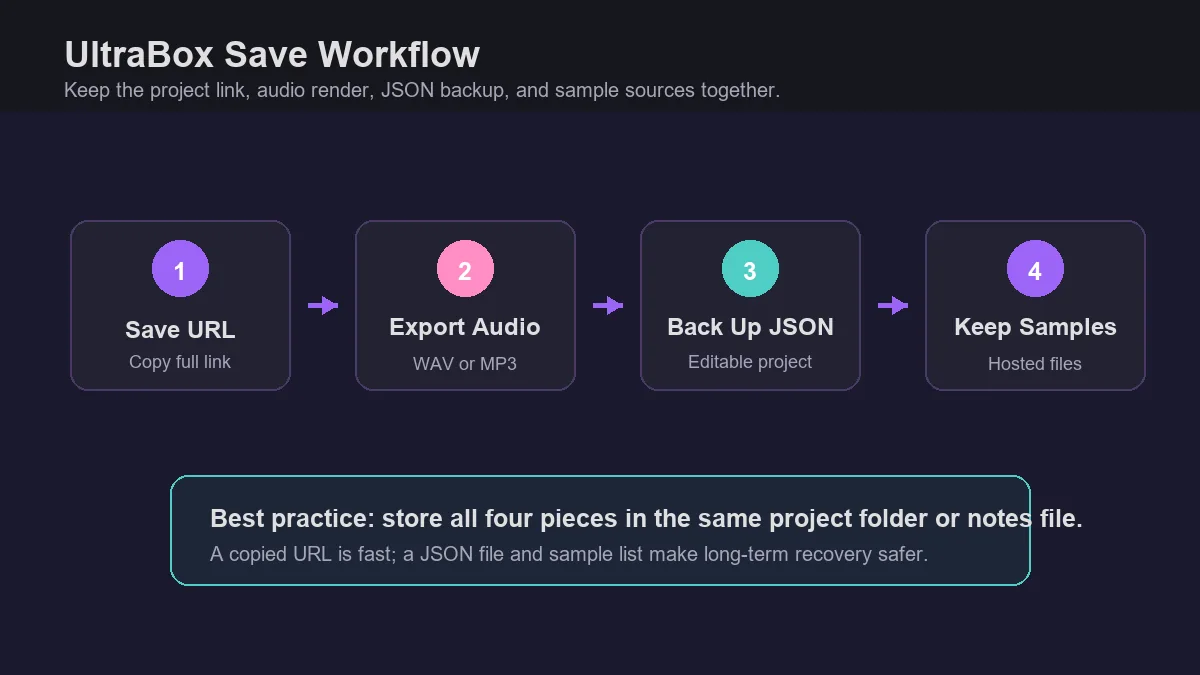
In this guide
Quick Answer
To save an UltraBox song, copy the full browser URL after the song is ready. Do not trim the long data after the hash symbol. For important songs, also export WAV or MP3, save an editable JSON/project backup when your workflow exposes one, and keep a note with any custom sample URLs and original audio files.
UltraBox follows the BeepBox-family idea of storing song data in a shareable link. This is why saving can feel different from a normal desktop music app. You are not just saving a file from a File menu; you are preserving an encoded project address. If the address is incomplete, shortened incorrectly, or copied before your last edit, the reopened song may not match what you heard.
What the UltraBox URL Saves
A normal UltraBox song URL can preserve the musical project state: notes, patterns, bars, instruments, channel settings, tempo, scale, and many editor-specific choices. The exact encoded data depends on the editor version and features used, but the practical rule is simple: the full URL is the editable song reference.
The part that often surprises users is custom samples. A URL can reference custom sample links, but it does not permanently host those audio files for you. If a sample lives on a file host, cloud folder, CDN, or personal site, the song depends on that file still being public and browser-accessible. If the sample URL breaks, the notes may reopen while the imported sound fails.
Good for quick saving
Copy the complete song URL into notes, a bookmark, a project document, or a versioned text file.
Good for sharing audio
Export WAV or MP3 when the listener does not need to edit the song or open UltraBox.
Good for future editing
Keep an editable backup such as JSON or a saved project reference when your workflow supports it.
Good for custom samples
Save the original audio files and direct sample URLs beside the song link.
Step-by-Step: How to Save on UltraBox
Use this workflow when a song matters enough that you would not want to rebuild it from memory. For tiny experiments, the first two steps may be enough. For finished tracks, keep all steps together.
Finish the edit before copying the link
Play through the song once, confirm the last pattern or instrument change is present, and then copy the URL from the browser address bar. If you copy first and edit later, your saved link may point to an older version.
Copy the complete URL, including the hash data
Do not remove the long encoded section after #. That section is usually the song data. If you paste only the domain or page path, you are not saving the composition.
Test the saved link in a fresh tab
Open a new private window or a separate browser profile and paste the saved link. If the song loads and plays correctly there, your URL is much more likely to work later or for another person.
Export an audio copy for listening
Use an audio export when you need a stable listening file. WAV is better for mastering, editing, or archiving. MP3 is better for small files, quick feedback, and social sharing.
Keep a project backup and notes
For finished songs, save the URL, date, editor version, audio export, and any JSON/project backup in the same folder or document. If the song uses custom samples, include those files and direct URLs too.
URL vs Audio Export vs JSON Backup
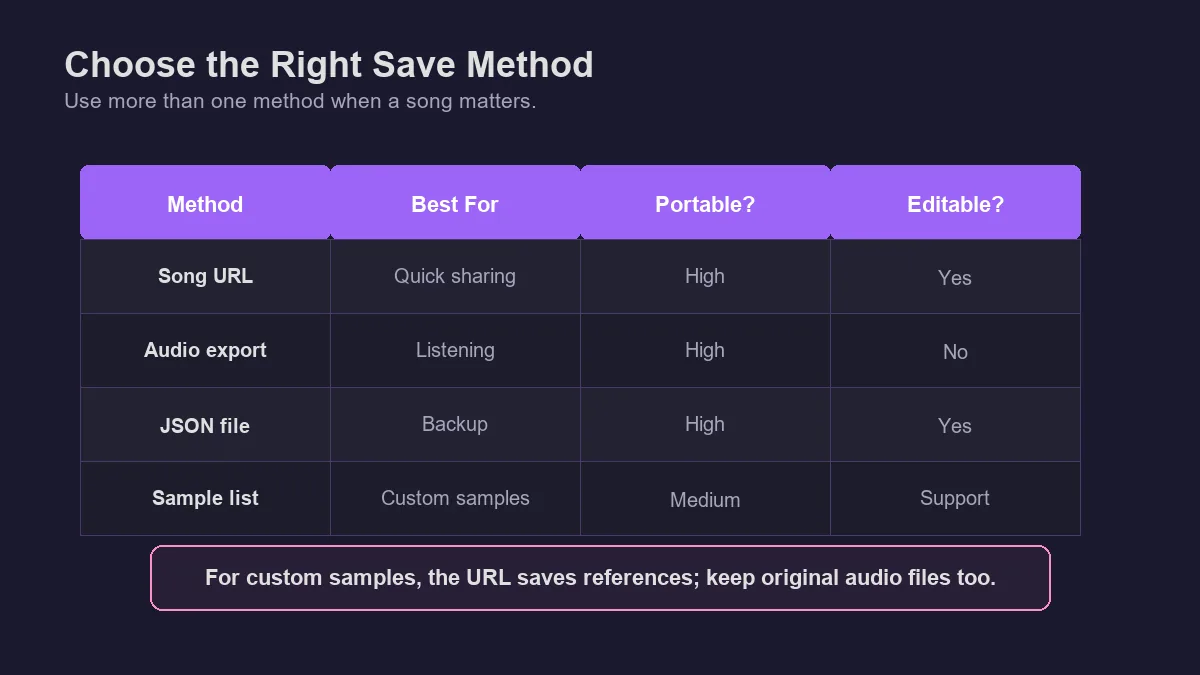
Users often ask for a single "save" button, but UltraBox saving is really a set of outputs. Each output solves a different problem. Use the table below to choose the right one.
| Save method | Best for | Editable later? | Main limitation |
|---|---|---|---|
| Full song URL | Fast saving, sharing with another UltraBox or BeepBox-family user, classroom examples, drafts. | Yes, when opened in a compatible editor. | Easy to break if shortened, trimmed, or copied without the encoded song data. |
| WAV export | High-quality audio archive, editing in another audio program, mastering, video use. | No. It is rendered audio, not an editable UltraBox project. | Larger file size than MP3. |
| MP3 export | Small listening copy, quick feedback, lightweight sharing. | No. | Compressed audio; not ideal as the only archive copy. |
| JSON or project data backup | Long-term editing, version control, debugging custom sample references. | Yes, when imported into a compatible workflow. | May still reference external custom samples instead of embedding raw audio. |
| Sample source folder | Songs that use imported WAV, MP3, OGG, or SoundFont-derived samples. | Supports editing by keeping dependencies available. | Requires your own organization and file hosting discipline. |
How Custom Samples Change Saving
Custom samples are the biggest reason to go beyond a copied URL. If your song uses only built-in UltraBox sounds, the URL is usually self-contained enough for normal sharing. If your song uses imported samples, the project also depends on external audio files. That means your backup should include more than the song address.
Keep a small manifest next to important projects. It can be a plain text file with the song title, saved URL, date, sample filenames, original sample sources, direct hosted URLs, and any license notes. If a sample host changes its policy or a file is moved, this manifest gives you a path to rehost the audio and repair the song.
Do not rely on a private cloud preview link as your only sample backup. UltraBox needs browser-accessible audio. A page that previews a file is not the same thing as a direct WAV, MP3, or OGG URL. For sample hosting details, use the UltraBox samples guide and the audio to JSON guide.
Troubleshooting Saved UltraBox Songs
The song opens blank or not as expected
First check whether the URL contains the full encoded song data. If a link was copied from a chat app, link shortener, school portal, or document editor, part of the hash data may have been removed. Return to the original browser tab if it is still open, copy the full address again, and test it in a fresh tab.
The song opens, but custom samples are missing
Check each sample URL directly in a browser. If the file no longer loads, rehost the original audio file on a CORS-friendly host and update the sample reference in the song. If you did not keep the original sample file, you may need to recreate or replace that sound.
The audio export sounds different from the editor
Confirm that you exported after your final edit, that the song plays correctly before exporting, and that you are comparing the same version. For complex songs, save a timestamped URL before each major export so you can trace which arrangement produced each audio file.
The offline version does not load the same song
Version differences and custom sample access can affect offline workflows. Use the official UltraBox download guide to verify the offline build, and keep the online URL plus a JSON/project backup when moving between online and offline copies.
Safe Link Sharing and Offline Moves
UltraBox song links can be very long because the editable project data lives in the address. Before sending a song through chat, a learning platform, a document editor, or a URL shortener, paste the result into a fresh browser tab and confirm that the exact song opens. Some tools preserve the visible link text but alter the hidden target, and some shorten or discard the hash portion after #.
When moving a song between the online editor and an offline build, keep three things together: the complete URL, an audio export, and a small project note with editor version and sample URLs. If the offline copy behaves differently, this gives you enough evidence to check whether the issue is a version mismatch, a custom sample host problem, or a copied-link problem.
| Sharing method | Risk | Quick check |
|---|---|---|
| Raw full URL in a text file | Low, if the entire hash data is preserved | Open from the saved text file before archiving. |
| Chat or classroom platform | Medium; long URLs may wrap or be rewritten | Click the sent link from another browser profile. |
| URL shortener | Medium to high; hash handling varies | Test the short URL and keep the original full URL beside it. |
| Offline HTML/app build | Version and sample-host differences | Keep the online URL, export audio, and note the offline version used. |
Practical Backup Naming Pattern
A simple folder structure prevents most save confusion. Use a folder name such as song-title-2026-06-10. Inside it, keep song-url.txt, notes.txt, a WAV export, an MP3 review copy if needed, project data or JSON when available, and a samples folder for imported sounds. If you make a major edit, duplicate the folder or add a version number before changing the song.
This is especially useful for game jams, classroom assignments, commissions, and collaborative tracks. The person listening may only need MP3. The person editing needs the full URL or project data. The person debugging missing sounds needs the sample list. Keeping those outputs together avoids last-minute reconstruction.
Related UltraBox Guides
After saving your song, use the BeepBox songs guide to understand how shared song URLs work in the wider BeepBox ecosystem. If your project uses custom audio, read how audio references appear in UltraBox song JSON. For sample preparation, use the SF2 to WAV guide. For offline work, start with the UltraBox download and offline version guide.
Sources checked on June 10, 2026: the official BeepBox editor, the official UltraBox editor, the UltraBox source repository, and the official UltraBox Releases page.