How to Add Extra Channels in BeepBox: Settings, Limits, and UltraBox Options
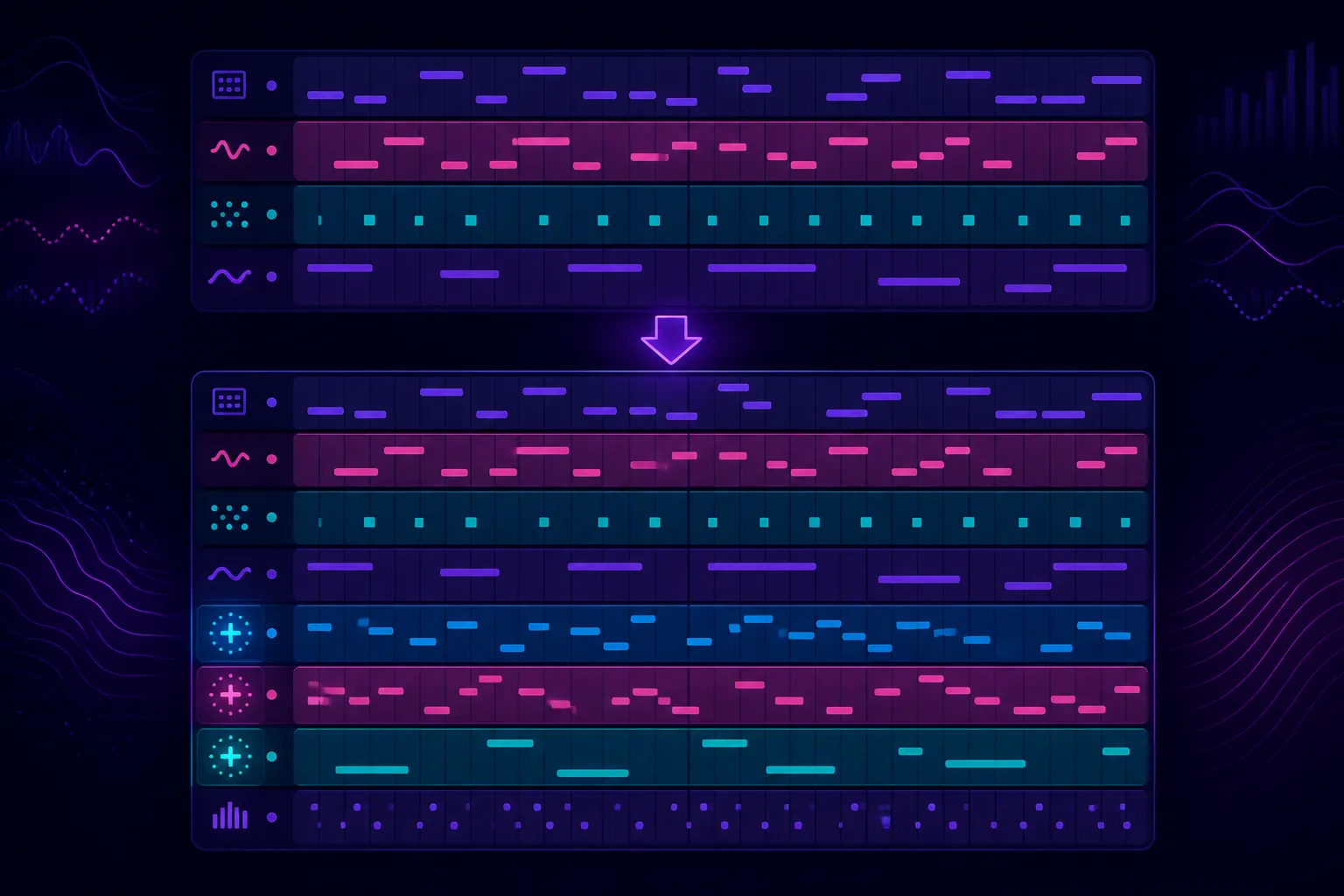
To add extra channels in BeepBox, open the editor's Edit menu and look for Channel Settings or the channel insert controls. Increase the channel group your version exposes, add a note to the new lane, and test it before arranging the song around it. If the control is missing or capped, the limit belongs to that BeepBox version or fork; use an editor with a larger channel system, such as UltraBox, instead of trying to force an unsupported lane.
Quick Navigation
How to Add Extra Channels in BeepBox: The Short Answer
A channel is an independent lane that can hold its own instrument, notes, patterns, or drum material. If your current editor exposes a channel setting, the practical path is to open Edit → Channel Settings, increase the appropriate channel group, and then check that a new lane appears in the grid. The exact wording and available groups can vary between BeepBox releases and community forks, so treat the menu label as a version-dependent detail rather than a promise that every editor looks identical.
The most important distinction is between channels and song length. Adding a channel gives you another parallel musical role. Increasing song length gives you more bars on the timeline. If your song feels crowded, adding a channel may help; if it ends too quickly, read the BeepBox song-length guide instead.
| What you want | Change this | How to confirm it worked |
|---|---|---|
| Another melody or harmony | Add or enable a pitch channel. | A new independent pitch lane appears and can play a different pattern. |
| More percussion layers | Add a drum channel when the fork exposes drum lanes separately. | Mute the new lane and hear the rhythm layer disappear without stopping the other drums. |
| More bars in the song | Change song length, not channel count. | New numbered boxes appear across the timeline. |
| More sound-design movement | Use a modulator or automation lane if the editor supports one. | A parameter changes over time without replacing the note lane. |
What a BeepBox Channel Actually Changes
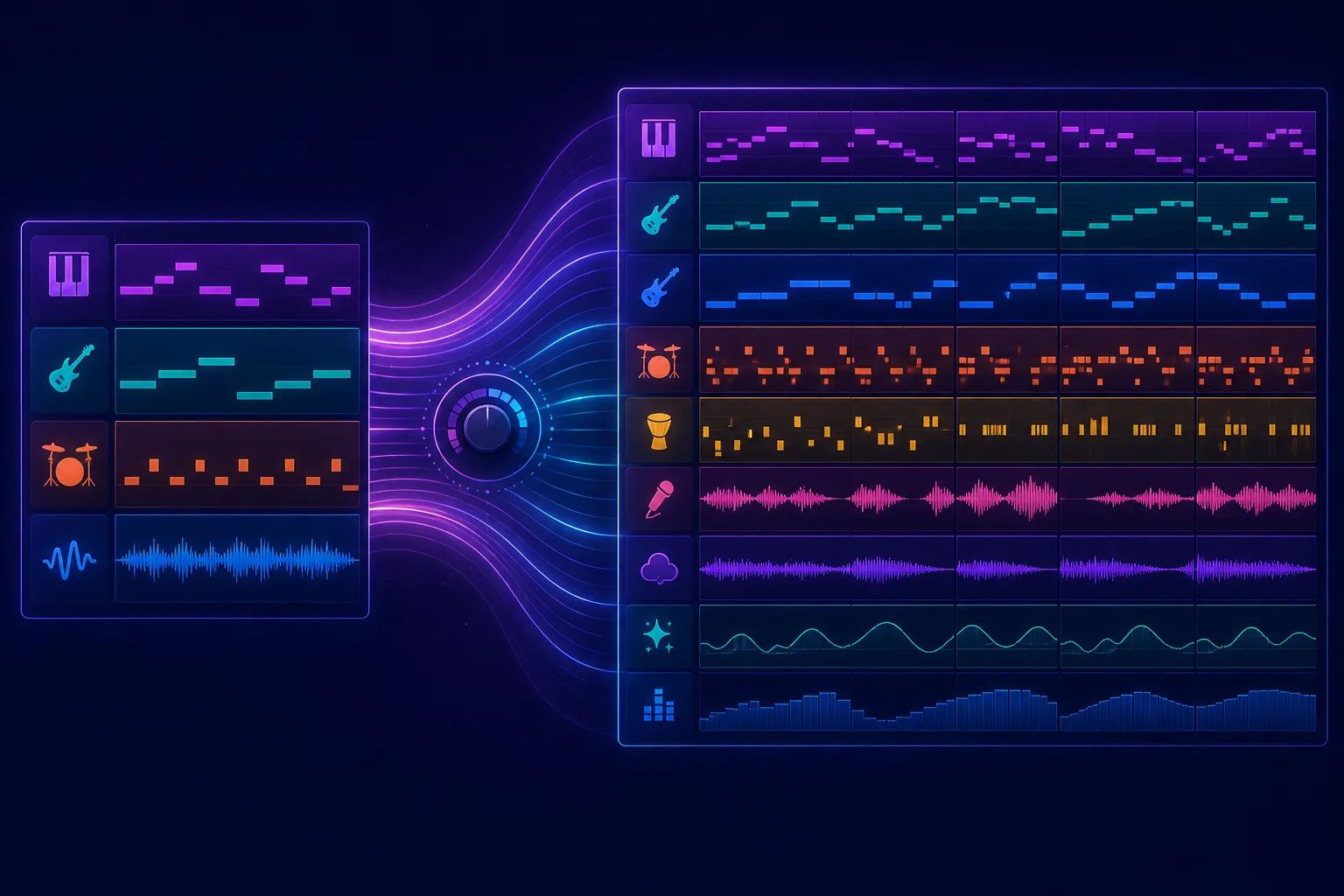
BeepBox-style editors are easier to understand when each lane has a job. A lead channel can carry the hook, a bass channel can anchor the harmony, a drum channel can provide the pulse, and a support channel can add chords or a countermelody. More lanes are useful only when they create a new musical function. Ten copies of the same pattern will make the editor harder to read without making the song richer.
This is also why the phrase extra channels can mean different things in different forks. One editor may add pitch lanes; another may add dedicated drums, modulation, custom-sample lanes, or a different instrument system. Before you move a song between editors, confirm which channel types are actually compatible. The BeepBox mods guide is useful when the question is about fork selection rather than one menu command.
How to Add or Enable a BeepBox Channel
Use these steps on the official editor or on the fork where your song currently lives. If a menu item has a different name, follow the same idea: find the control that changes channel groups, insert lanes, or sets the number of available channels.
- Open the correct song and editor. Load the complete song URL, then check the page identity before editing. A BeepBox URL opened in UltraBox is not always the same working environment as the original BeepBox tab, especially when the song uses fork-specific features.
- Open Edit and find channel controls. Look for Channel Settings, an insert-channel command, or a similar option. The official BeepBox interface and community forks can move this control as their menus evolve, so do not rely on a screenshot from an unrelated version.
- Choose the channel group. Decide whether you need a pitch, drum, or other available lane. Add the smallest useful number first. One harmony lane or one percussion layer is easier to evaluate than a large empty block of channels.
- Place a test note and mute the lane. Give the new channel a simple instrument and a short note. Toggle its speaker or mute control. If the note and mute state behave independently, the channel is active and you can start arranging it.
- Save the updated song URL. Copy the complete URL after the channel change and open it in a fresh tab. If the new lane disappears, you may have reached a version limit, opened the wrong fork, or failed to preserve the full URL.
Version Note: Do Not Assume Every BeepBox Fork Has the Same Limit
A channel menu can exist in one fork and be absent in another. It can also expose different pitch, drum, and special-channel ceilings. When a control is missing, first confirm the editor address and reload the original song URL. If the limit is still present, it is safer to move the project to a compatible fork than to describe an unsupported workaround as if it were universal.
What to Do When BeepBox Is Capped
If you can open channel settings but cannot increase the number any further, you have reached the editor's supported ceiling. That is not a broken note grid. It is a design boundary that keeps the interface, song data, and playback model manageable. You have four practical choices:
- Reassign roles: combine a countermelody with a chord part, simplify a drum layer, or use a more expressive instrument before adding another lane.
- Arrange around the limit: let one channel change instruments or patterns across sections instead of keeping every role active at once.
- Use a compatible fork: move the song to an editor that supports the channel types your arrangement needs.
- Start a new project in the larger editor: if the old song is already difficult to migrate, rebuild the core melody and bass rather than carrying every unnecessary part forward.
Do not confuse an empty row with a real channel. Some layouts show controls or separators that look like extra space, but only a lane with its own channel data can hold an independent instrument and pattern. A quick mute test is more reliable than counting visible lines.
When UltraBox Is the Better Option
UltraBox is a sensible next step when your problem is not one missing note but a growing arrangement. Its feature set documents expanded pitch, drum, and modulator channel systems, plus custom samples and modulation. Those tools matter when you want independent layers for harmony, percussion, texture, or automation without deleting the parts that already work.
The safest migration is simple: copy the original BeepBox URL, open it in the official UltraBox editor, listen through the imported song, and then add one new lane at a time. Check the UltraBox vs BeepBox comparison before depending on a fork-specific feature. If you later reopen the song in vanilla BeepBox, unsupported channels, samples, or modulation may not survive intact.
For the current UltraBox channel map and feature boundaries, use the site's UltraBox features guide. It keeps the product-specific counts separate from the general BeepBox how-to, which is important because channel limits are not identical across every fork.
How to Use the New Lanes Musically
Adding a lane solves a production problem only when you give it a clear responsibility. Start with the smallest plan that makes the song easier to hear:
| New lane role | Good first use | Warning sign |
|---|---|---|
| Harmony | Hold simple chords under an existing lead. | The chord notes fight the bass because the range is too low. |
| Countermelody | Answer the main hook only at the end of each phrase. | Both melodies remain busy in every bar. |
| Texture | Add a quiet pad, pulse, or sampled accent in selected sections. | The texture masks the rhythm or makes every section equally dense. |
| Percussion | Separate a fill, hat, or low drum idea from the main beat. | The new layer repeats the same hit pattern without a structural purpose. |
If the new channel makes the track harder to follow, mute it and compare the two versions. A useful lane should make a section clearer, stronger, or more dynamic. If it does none of those things, the answer may be better pattern writing rather than another channel.
Common Mistakes When Adding BeepBox Channels
- Changing song length instead: more bars create time, not a new independent instrument lane.
- Copying the same pattern everywhere: give the new channel an entrance, a quieter section, or a call-and-response job.
- Mixing URLs from different forks: verify the editor before assuming a feature disappeared.
- Skipping the mute test: a new row is useful only if it plays and saves independently.
- Saving only the audio: keep the complete song URL and any custom sample dependencies. The UltraBox saving guide covers the recovery workflow.
FAQ
How do I add extra channels in BeepBox?
Open the Edit menu and look for Channel Settings or an insert-channel control. Increase the pitch, drum, or other available group, then add a short test note and mute the lane to confirm it works.
Can I add unlimited channels?
No. Every BeepBox release or fork has supported limits. When the setting is capped, simplify the arrangement or move the song to a compatible editor with more channel space.
Does adding channels make the song longer?
No. Channels run in parallel; song length controls the number of bars. Use the song-length setting when you need more timeline space.
Why can I not find Channel Settings?
You may be using a different fork, a different version, a mobile layout, or a song URL opened in another editor. Confirm the address, reload the original URL, and check the current Edit menu before assuming the feature is unavailable everywhere.
Will UltraBox extra channels open in vanilla BeepBox?
Do not assume they will. Basic compatible notes may transfer, but fork-specific channels, samples, or modulation can be lost when a richer song is opened in an editor that does not support those features.
Sources and Related References
- BeepBox official editor for the current browser-based editing environment and shareable song workflow.
- BeepBox community editing commands for menu and editing terminology that can vary across releases.
- UltraBox official editor for testing a BeepBox URL in the expanded editor.
- UltraBox source repository for the open-source project and feature implementation context.
Ready to Give the Song More Room?
Test one new lane, assign it one musical job, and move to UltraBox only when the editor's limit is the real bottleneck.