BeepBox Keyboard Shortcuts: A Practical Keybind Guide
The fastest BeepBox workflow uses a small set of keyboard shortcuts. Start with Space to play or pause, Z to undo, Y or Shift+Z to redo, C/V to copy and paste, the number keys to assign patterns, and the arrow keys to move a selection. This guide groups those stable commands, flags fork-specific additions in UltraBox, and explains what to do on a touch screen.
Quick Navigation
BeepBox Keyboard Shortcuts: The Short Answer
BeepBox exposes its most useful commands when the editor has focus. Click an empty area of the editor first, then use the keyboard instead of reaching for the menus every time. The official BeepBox instructions document playback, undo and redo, copy and paste, pattern assignment, selection movement, channel rearrangement, playhead movement, and a shift-drag selection gesture. Those commands are the stable baseline for the original editor and many BeepBox-family forks.
There is an important boundary: a BeepBox shortcut is a context-sensitive editor command, not a browser shortcut. If the address bar, a search field, or another form control is focused, the same letter may type text instead of changing a pattern. When a key appears to do nothing, click the grid, close an open menu, and try again. Save a full song URL before experimenting so a mistaken edit is easy to recover; the UltraBox save guide explains the difference between a song link, audio export, and project backup.
Core BeepBox Keyboard Shortcuts
These are the official editor's most consistent commands. Copy and paste act on the current selection; playback keys affect the whole song.
| Keys | Action | When it helps |
|---|---|---|
| Space | Play or pause | Audition a loop without moving the pointer to the transport control. |
| Shift+Space | Play from the pointer position | Check a transition or repair without replaying the entire song. |
| Z | Undo the last action | Recover from a note, pattern, or volume edit that went too far. |
| Y or Shift+Z | Redo | Restore an edit after checking the before-and-after sound. |
| C / V | Copy / paste selected notes or patterns | Reuse a motif, duplicate a drum hit, or move an idea to another bar. |
| 0-9 | Assign a pattern number | Build an arrangement by reusing patterns across song bars. |
| Arrow keys | Move the selection | Make small, repeatable moves when the grid is too dense for a mouse. |
| Ctrl+Arrow keys | Rearrange channels | Organize a growing song without dragging every channel by hand. |
| [ / ] | Move the playhead | Step backward or forward while checking a detail. |
| F / H | Jump to the first or highlighted pattern | Return to a known location during a long arrangement. |
| Shift+drag | Select a range of notes or patterns | Work on a phrase instead of changing one cell at a time. |
Pattern, Channel, and Bar Editing
Think of the keys in three groups: playback/history, selection, and arrangement. The last group changes song structure, so audition the result immediately.
Pattern work
Select notes or a pattern, press C, move to the destination, and press V. Number keys choose which pattern a bar plays. If a pattern is reused, remember that changing its source can affect every bar that points to it.
Channel and bar work
Use Ctrl+Arrow to reorder channels, then listen again. Commands for inserting or deleting bars and channels vary by fork; a key in a mod table may be absent or reassigned in your build.
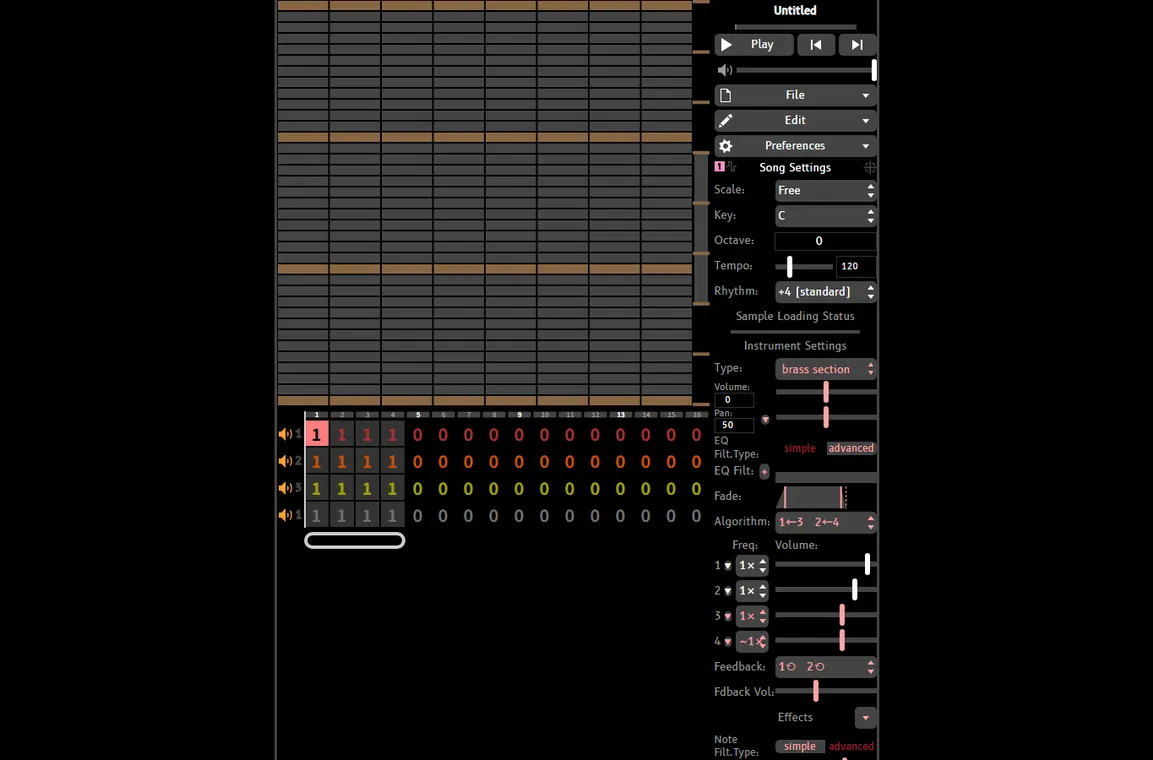
UltraBox and BeepBox Mod Differences
UltraBox extends the BeepBox workflow with more channels, FM options, custom samples, and other controls. The familiar core remains useful, but do not assume every command belongs to vanilla BeepBox.
| Workflow | Portable baseline | What may vary in UltraBox or a fork |
|---|---|---|
| Playback and history | Space, Z, Y | Usually retained, but a fork can add menu commands or different focus behavior. |
| Copying patterns | C, V, number keys | Some forks add multi-pattern or selective paste commands. |
| Channel movement | Ctrl+Arrow | Extra channel insertion, deletion, or specialized selection keys may be available. |
| Sound design | Use the visible instrument controls | FM, samples, modulation, and custom presets can expose their own focus and menu rules. |
| Touch input | Use visible controls and long press where documented | Forks may tune gestures differently; do not assume a desktop key has a one-to-one touch action. |
A Faster BeepBox Editing Workflow
Shortcuts are most useful when they form a repeatable loop rather than a list to memorize. Try this sequence on a small song:
- Save a checkpoint. Copy the complete song URL or export a project copy before a large change.
- Audition the target. Use Space to play and Shift+Space to start near the section you are fixing.
- Select only what you need. Move with arrows, then use Shift+drag where supported to select a phrase.
- Duplicate before changing. Use C, move, V, then assign the pattern with a number key.
- Check the result and undo early. Listen after channel moves; press Z as soon as an edit sounds wrong.
Keyboard Versus Touch Controls
On a phone or tablet, the shortcut list maps the available actions, but physical keys may be missing. Official BeepBox guidance notes that a long press can replace some selection gestures; use visible controls for other commands.
| Task | Keyboard workflow | Touch-friendly fallback |
|---|---|---|
| Play or pause | Space | Tap the visible play control. |
| Select a range | Shift+drag | Use a deliberate long press and drag where the editor supports it. |
| Undo | Z | Use the visible undo control or Edit menu. |
| Move a pattern | Arrow keys and number keys | Tap the pattern boxes and arrows; rotate to landscape when the grid is crowded. |
| Copy a phrase | C then V | Use the editor's copy and paste menu actions if exposed by the build. |
For a longer composition, a tablet or desktop gives you more room to see channels and pattern numbers at once. If mobile editing is your main use case, read the dedicated BeepBox mobile guide before assuming that a desktop-oriented shortcut workflow will feel comfortable on a small screen.
Troubleshooting Shortcut Problems
- Nothing happens: click the editor first. The browser must give focus to the music interface before it can receive keybinds.
- A letter types into a field: close the text field or menu and click the grid. Browser focus is still outside the editor.
- Undo changed the wrong thing: stop, press Y or Shift+Z if needed, then confirm which panel had focus before continuing.
- Copy pasted the wrong pattern: check the highlighted selection and destination bar. Number keys assign the selected pattern; they do not replace the selection step.
- A fork behaves differently: use its visible help or Edit menu. UltraBox, JummBox, and other mods can share a core but add different commands and limits.
- The song feels lost after editing: reopen the saved URL or project backup. The save and export guide covers reliable recovery options.
BeepBox Keyboard Shortcuts FAQ
What are the most useful BeepBox keyboard shortcuts?
Start with Space, Z, Y/Shift+Z, C/V, number keys, arrows, and [/].
Does UltraBox use the same BeepBox shortcuts?
The stable core is a useful start. Confirm extra insert, delete, multi-select, and sound-design commands in the active build's help menu.
Can I use BeepBox shortcuts on a phone?
A physical keyboard is most reliable. On touch screens, use visible controls and long press where the editor documents it.
Why do shortcuts type notes instead of editing?
The editor likely lost focus. Click the grid and close text fields before trying the command again.
Where can I confirm a BeepBox keybind?
Check the official instructions for the baseline and the Wiki keybind table for mod-specific notes.
Summary
BeepBox keyboard shortcuts are easiest to learn in layers: playback and history first, selection and copy/paste second, then pattern and channel arrangement. The official core commands carry across many forks, but UltraBox and other mods can add their own operations. Keep the active editor focused, save a recoverable song URL, and verify fork-specific keys in the visible help menu. That habit gives you the speed of a keyboard workflow without treating an old shortcut list as a promise for every build.
Sources and Scope
- Official BeepBox editor instructions for the stable shortcut baseline and touch note.
- BeepBox Wiki keybinds for grouped commands and mod applicability; fork behavior can change.
- Search intent was checked against current public source pages. This article does not claim a Similarweb search volume for the selected keyword because the bounded keyword-generator response returned no records.
Open the Editor and Try One Shortcut
Start with a small loop, click the grid, press Space, and use Z to test the undo path. Once that feels predictable, add copy, paste, and pattern assignment to your workflow.