
BeepBox MIDI: How to Import, Use a Keyboard, and Export
Searching for BeepBox MIDI means bringing in a MIDI file, playing notes from a hardware keyboard, or moving a finished song to another music program. UltraBox supports a broader MIDI workflow, but MIDI events are not the same as a BeepBox song URL. This guide separates the jobs so you can test compatibility before arranging around a failed import.
In this guide
Quick Answer
For a BeepBox MIDI import or export, use the UltraBox editor and check its File or project controls for the MIDI option. Choose a small test file first, inspect the generated channels, then remap instruments and tempo before building a full arrangement. The original BeepBox workflow is centered on note entry, patterns, and shareable URLs, so an UltraBox control should not be assumed in every fork.
Keep the source MIDI unchanged as a comparison copy if the import creates too many channels, shifts notes, or loses a controller event. For a normal BeepBox project, the complete URL is still the most portable editable save format. MIDI is an interchange layer, not a replacement for the project URL.
How BeepBox MIDI Works in This Editor
MIDI is a stream of musical instructions: note-on and note-off events, timing, velocity, channel numbers, program changes, and sometimes controller data. It does not contain the recorded sound of a piano or the exact UltraBox patch. When an editor imports MIDI, it has to turn those events into its own patterns, bars, channels, instruments, and tempo model.
That translation explains most surprises. A piano MIDI may arrive as several pitch channels, while a drum track may need a dedicated drum channel. A long performance can create dense note patterns that are difficult to edit on a grid. Program numbers can suggest a family of sounds, but they cannot reproduce an external synthesizer's timbre. Think of the import as a musical sketch that needs a human cleanup pass.
How to Add a MIDI File to a BeepBox MIDI Workflow
The exact menu label can change between versions and forks, so use the current editor rather than a screenshot from an old build. The following sequence is reliable because each step checks a real result before you continue.
Prepare a small test file
Start with one melody or a short four- or eight-bar MIDI. Remove unused tracks in your DAW first when possible. A smaller file makes it easier to see whether tempo, bar length, and note density translate cleanly.
Open the correct editor
Use the official UltraBox web editor or its verified offline build. If you are testing vanilla BeepBox or another fork, confirm that its current build advertises MIDI support before looking for an import control.
Choose MIDI import
Open the editor's file or import controls and choose the MIDI file. If the browser asks for a file permission, select the local file and wait for the import to finish. Do not close the tab while the editor is creating patterns.
Check the first bar
Play the first section and compare it with the source. Confirm the tempo, key, octave, note starts, and note lengths. Fix one obvious mismatch before reviewing the rest of the song.
Save a new URL
Once the imported project is stable, copy the complete browser URL. Treat it as a new version, not as a replacement for the original MIDI. Export audio only after the arrangement sounds correct.
If the menu has no MIDI item, do not pretend that a normal BeepBox URL can accept a MIDI file. Use manual note entry, a compatible fork, or an intermediate tool that produces a format the editor documents. The UltraBox features guide lists the site's current import and export overview; the live editor remains the place to confirm what the deployed build exposes.
BeepBox MIDI Keyboard Input
A MIDI keyboard answers a different question from MIDI file import. It sends live note events through the browser's MIDI interface. When the editor supports that input, the keyboard can speed up melody entry or let you audition a patch. It does not automatically turn a performance into a polished song.
- Connect the keyboard before opening the editor, or reload after connecting it.
- Use a browser and operating system that expose MIDI devices to web pages. Approve the device prompt only for the editor you trust.
- Select the keyboard in the editor's input menu if a device list appears.
- Press one middle-range key and confirm that one note is heard or entered. Check the selected channel before playing chords.
- Record or place the useful phrase, then quantize or edit it on the grid. Save the URL after the cleanup pass.
Browser permissions, mobile browsers, and older forks can make the device list empty. A missing list is a compatibility boundary, not proof that the keyboard is broken. Test the same device in a current desktop browser and keep the mouse or touch grid as a dependable fallback. If a keyboard sends sustain, pitch bend, or aftertouch, expect some messages to be ignored unless the current fork documents them.
Track Mapping and Cleanup After Import
Most MIDI cleanup is musical rather than technical. Decide which tracks are worth keeping, then give every channel a clear job. A lead should not share a channel with a dense chord part just because both arrived on MIDI channel 1. Separate the parts, mute the source track, and listen to the arrangement with fewer voices before adding detail.
| Import symptom | Likely cause | Practical repair |
|---|---|---|
| Too many channels | The MIDI contains several takes, articulations, or split tracks. | Keep melody, bass, harmony, and drums first. Merge only parts that share an instrument role. |
| Notes sound too high or low | Octave mapping or the source instrument range changed. | Move the channel by octave, then compare the first phrase with the source before shifting the whole song. |
| Timing feels late | Tempo, ticks-per-quarter, quantization, or swing settings differ. | Verify tempo and grid resolution. Quantize lightly; leave intentional off-grid notes alone. |
| Drums become pitched notes | The editor mapped a percussion track to a normal pitch channel. | Move the events to the editor's drum lane and simplify the kit into kick, snare, and hat roles. |
| Patch does not sound familiar | MIDI program numbers do not carry the original synthesizer. | Choose an UltraBox patch by function, then shape envelope, filter, and effects by ear. |
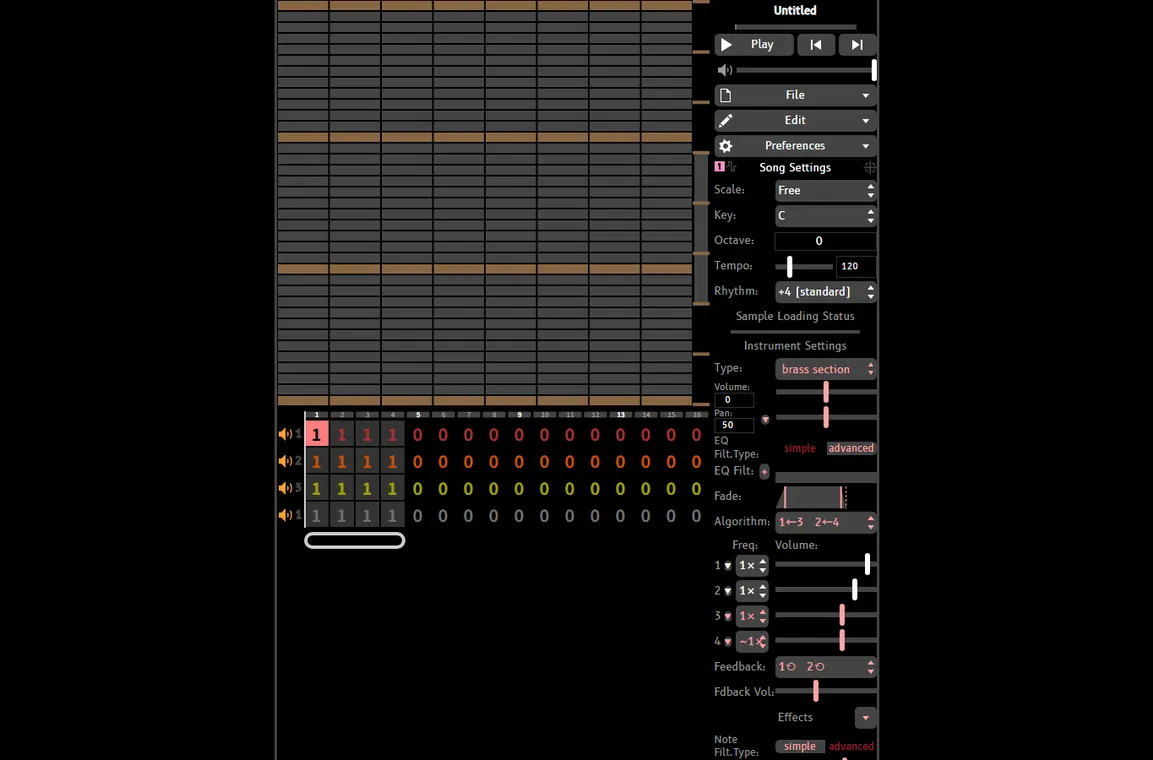
Use the editor screenshot as a mental model: verify the grid, channel rows, and instrument controls after conversion. A successful file dialog is not a successful musical import. Play a verse, a dense section, and ending before calling the migration complete.
Export and Archive a BeepBox MIDI Song
When the imported or keyboard-created song is ready, export for the next job rather than choosing one universal file. MIDI is useful when another editor needs notes. WAV is useful for mastering or an archival reference. MP3 is useful for a small review copy. The complete UltraBox URL is the editable project reference, and a JSON or project backup can preserve editor-specific data when the current build offers it.
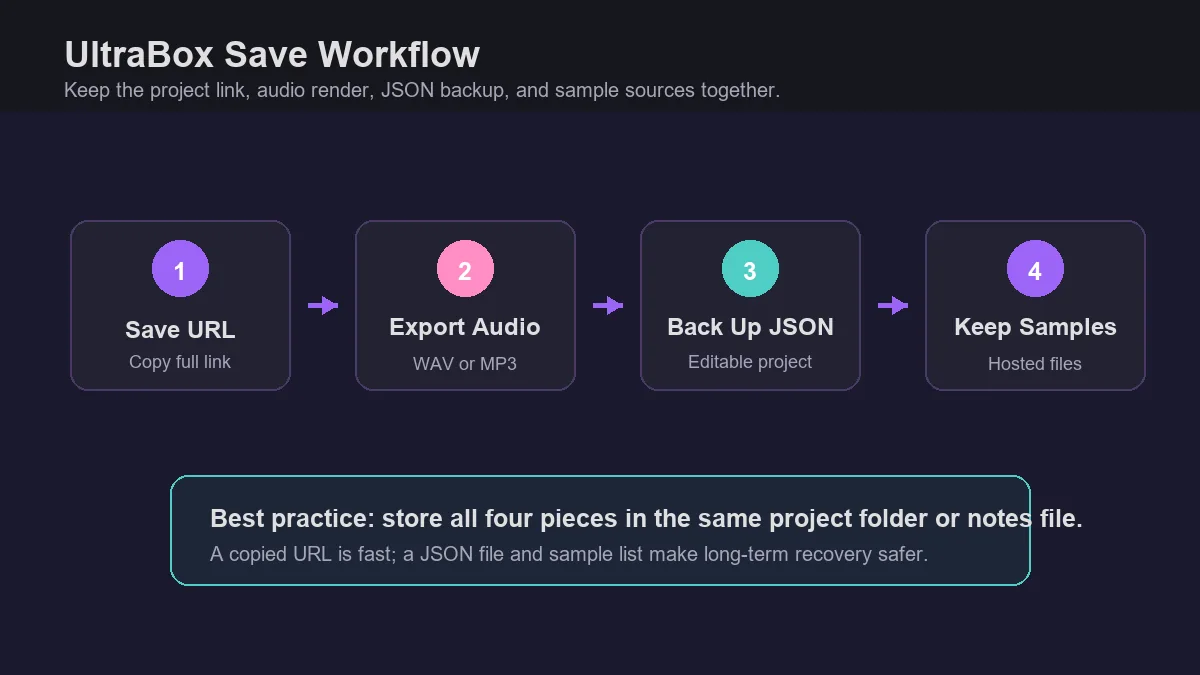
Use a versioned folder such as song-name-2026-10-12. Keep the source MIDI, song-url.txt, an audio render, a short note about the editor version, and any custom sample URLs in the same place. Reopen the saved URL in a fresh tab before deleting the source or changing the next version. This small check catches truncated hashes and missing external samples early.
For a complete save checklist, read How to Save on UltraBox. For custom sample dependencies, use the samples guide and the audio-to-JSON workflow. Those pages cover files that MIDI cannot store, such as hosted audio URLs and editor-specific instrument settings.
MIDI Limits and Troubleshooting
The import button is missing
Check the editor URL, build version, and fork first. UltraBox and vanilla BeepBox do not expose identical features. If the current build has no MIDI control, use a supported editor or manual grid entry instead of an unrelated converter.
The import creates a silent song
Confirm that the file contains note events, not only automation or markers. Check the tempo and channel mute states, then assign a playable instrument. A MIDI file can be valid while still containing tracks that the editor cannot map to sound.
The song is too dense to edit
Reduce the source to its musical roles before importing again. Remove duplicate takes, shorten long releases, and export a melody-only test. A clean eight-bar import is more useful than a complete orchestral file that becomes hundreds of tiny pattern fragments.
Sources and Related Guides
This BeepBox MIDI guide was checked against UltraBox feature documentation, the tracked editor bundle's MIDI parser, and first-party references. The UltraBox source repository describes the editor and URL workflow; the official BeepBox editor is the reference for the original browser workflow. Menu names can change, so test a small file first.