How to Convert Audio to JSON for UltraBox Custom Samples
If you are searching for how to convert audio to JSON for UltraBox, the important answer is this: UltraBox does not usually turn a WAV or MP3 into raw JSON data. The practical workflow is to host the audio file, add its direct URL as a custom sample, then save or export an UltraBox song JSON that references that hosted sample.
Quick Answer
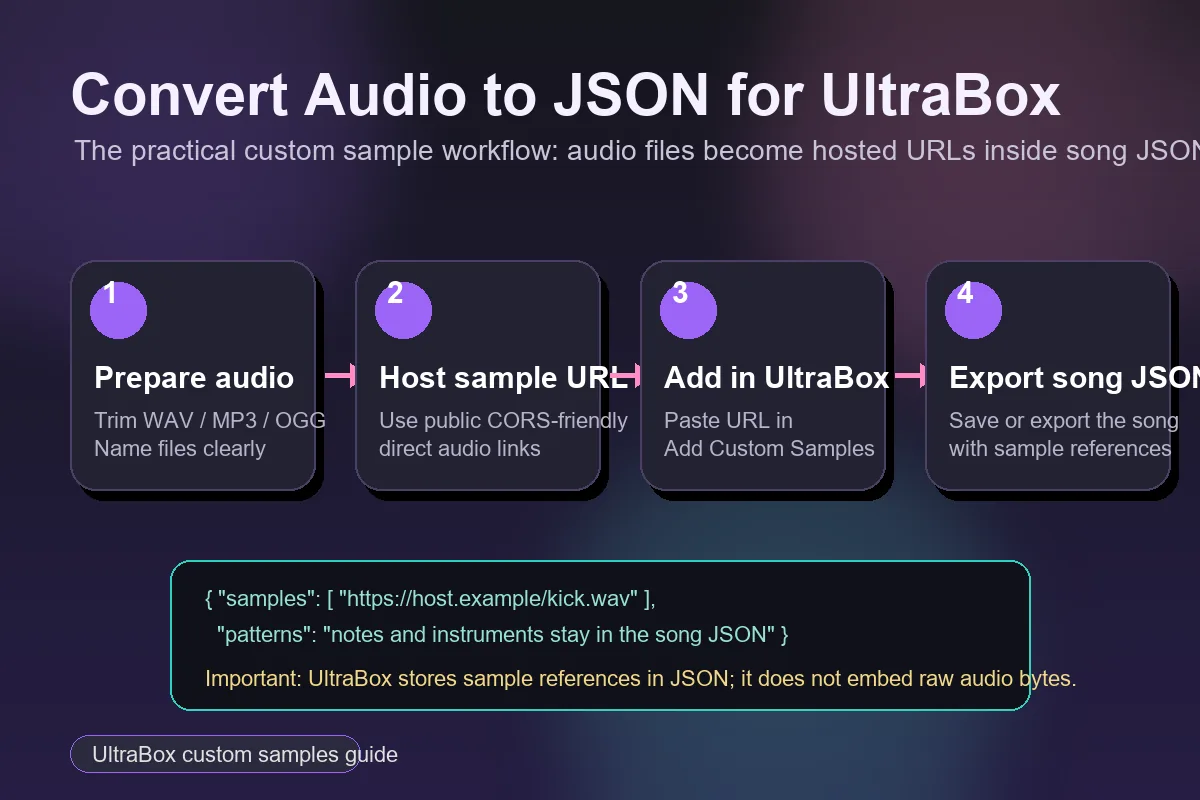
Use this workflow: prepare a small audio file, upload it to a public CORS-friendly host, copy the direct audio URL, add it in UltraBox through Add Custom Samples, then export or save the song. The JSON stores the sample reference and song settings, while the audio remains a hosted file.
This guide is intentionally different from the broader UltraBox Samples page. That page covers built-in libraries, hosting choices, and general custom sample importing. This page focuses on the confusing phrase "convert audio to JSON" and explains the safe way to create an UltraBox song file that includes custom audio references without breaking sharing, loading, or file size.
What "Audio to JSON" Means in UltraBox
JSON is a text format for structured data. It is good for storing song metadata, channel settings, instrument settings, note patterns, and references to external assets. Audio files are different. A WAV, MP3, or OGG contains waveform data, compression data, and timing information. You can technically encode binary audio into text, but that is not the practical UltraBox custom sample workflow.
In UltraBox, custom samples are normally loaded from URLs. The song data can remember that a custom sample exists and where it is hosted, but the sample itself remains a normal audio file. This keeps the song shareable, prevents the JSON from becoming massive, and lets browsers cache the audio in the way they already understand.
A helpful mental model is: the JSON describes the song; the audio URL supplies the sound. If the URL is public and fetchable, UltraBox can load the sample. If the URL is private, points to a preview page, or blocks cross-origin requests, the JSON may still contain the reference, but the sample will fail when the song loads.
Audio file
WAV, MP3, or OGG sample prepared outside UltraBox.
Hosted URL
Public direct link that the browser can fetch from UltraBox.
UltraBox import
Add Custom Samples stores the reference inside the song.
Song JSON
Contains notes, instruments, settings, and sample URLs.
Step-by-Step Workflow
The process below works whether you are importing a one-shot drum hit, a vocal chop, a short ambience, or a sample extracted from a SoundFont. If your source is an SF2 SoundFont rather than a normal audio file, start with the SF2 to WAV for UltraBox guide first, then return here after you have individual WAV files.
Prepare a small, clean audio sample
Start with a focused file. Trim silence at the start, remove unnecessary tails, and avoid uploading a full song when you only need one sound. WAV is easiest to inspect and troubleshoot. MP3 and OGG are useful when smaller file size matters, but they can introduce compression artifacts or loop timing quirks.
- Use lowercase filenames with hyphens, such as
snare-tight.wav. - Prefer mono for short instrument samples unless stereo width is important.
- Keep one-shot samples short so the song loads quickly.
Upload the file to a CORS-friendly host
UltraBox runs in a browser, so the browser must be allowed to fetch the audio from the hosting service. A normal cloud share page may look public to you but still fail from another website. Use a host that provides direct file URLs and allows cross-origin audio requests. File Garden and GitHub Pages are common choices for UltraBox custom sample workflows.
- Good URL pattern:
https://example.com/samples/snare-tight.wav. - Risky URL pattern: a share page, preview page, short link, or login-protected page.
- Test the link in a private browser window before using it in a song.
Add the sample URL inside UltraBox
Open UltraBox, go to the editor's custom sample area, and use Add Custom Samples. Paste the direct URL and confirm. If the file is reachable, UltraBox can add the sample to the preset list. Test it in a new blank song before you use it in a full arrangement so you know the problem is not caused by an existing instrument setting.
Create a short test pattern
Add a few notes using the imported sample. For drum hits, test several rhythms. For pitched samples, test low, middle, and high notes. This reveals problems early: the sample may be too quiet, too long, clipped, badly looped, or unsuitable for transposition.
Save or export the song data
Use the normal UltraBox save or export workflow available in your editor version. The resulting song data should preserve the custom sample reference along with note patterns, instruments, tempo, effects, and channel settings. If you export JSON, treat that JSON as a project file: it depends on the hosted sample URL staying alive.
Sample URL Rules
The URL matters more than the file extension alone. A file named kick.wav can still fail if the host returns a preview HTML page, redirects through a tracking page, requires cookies, or blocks CORS. The browser console may show this as a network error even though the file opens when you are logged into the host.
| Requirement | Good practice | Why it matters |
|---|---|---|
| Public access | Open the URL in a private window and confirm the audio loads. | Other users need the same access when they open your song. |
| Direct file link | Use a URL that ends in .wav, .mp3, or .ogg. |
UltraBox needs the audio file, not a hosting service interface. |
| CORS support | Use a host known to allow browser-based audio requests. | Browsers block some cross-site fetches even when the file exists. |
| Stable filename | Do not rename or move the file after exporting the song JSON. | The JSON reference breaks if the hosted path changes. |
How to Check the Exported JSON
When you inspect an exported UltraBox JSON file, do not expect to see a giant block of waveform data. Instead, look for a custom sample reference or URL-like value near instrument or sample settings. The exact structure can change between UltraBox versions, so the goal is not to memorize a property name. The goal is to confirm that your song remembers the hosted sample URL.
A healthy project has a simple dependency chain: the JSON exists, the URL in the JSON is still public, and the audio file at that URL still plays. If you archive the song for long-term use, keep a small text note with the source audio license, the hosted URL, and the original local audio file. The broader How to Save on UltraBox guide shows how to keep that JSON backup alongside the full song URL and rendered audio export.
If your real question is whether a WAV should become an HTML file before UltraBox can use it, read the WAV to HTML for UltraBox guide. In most cases, the answer is no: the custom sample should stay as a direct audio URL while the song data stores the reference.
Do not base64-encode large audio files into JSON unless you are deliberately building a separate tool. It makes the JSON hard to edit, much larger to share, and easier to break. For normal UltraBox music sharing, hosted sample URLs are the safer choice.
Troubleshooting
The JSON exports, but the sample does not play later
The JSON may be fine while the hosted file is not. Reopen the sample URL in a private window. If it no longer works, restore the file at the same URL or update the custom sample reference in UltraBox and export the song again.
The sample works on my computer but not for other people
You may be using a link that depends on your login session. Public songs need public sample URLs. Test from a different browser profile or device. If the file host has privacy controls, set the file to public or move it to a simpler static host.
UltraBox imports the sample but it sounds wrong
Check the audio itself before debugging JSON. The file may have long silence, clipping, stereo phase issues, or a loop point that clicks. Normalize volume carefully, trim silence, and test a short blank UltraBox project with only that sample.
I have an SF2 file, not a WAV or MP3
Convert the SoundFont into individual WAV samples first. The SF2 to WAV guide covers selecting useful sounds, exporting WAV files, naming them, hosting them, and importing the final URLs.
Recommended Internal Links for This Workflow
If you are still learning UltraBox, read the tutorials index for general composition steps, use the sample library guide for hosting and custom sample basics, and open the UltraBox editor only after your first direct sample URL is ready. If you need offline use, the download guide explains where to find official releases.
Sources checked on May 24, 2026: the official UltraBox Sample Extractor, the UltraBox FAQ, and the public UltraBox GitHub organization. Hosting behavior can change, so always test your direct sample URLs before sharing a song.
FAQ
Next step: prepare one short sample, host it, add it to a blank UltraBox project, and export the song data. Once that small test works, repeat the same process for the rest of your custom sample set.