Does BeepBox Work on Mobile? Touch Controls, Browser Tips, and UltraBox
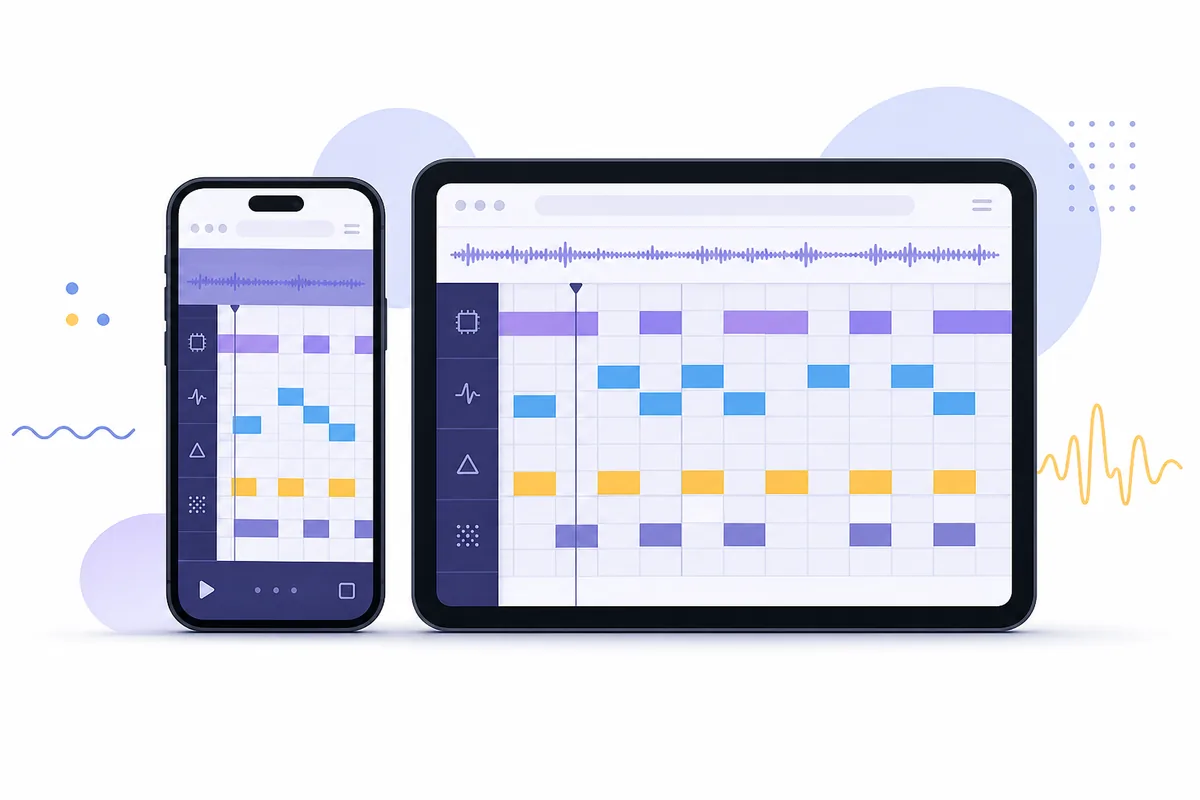
Does BeepBox work on mobile? Yes. BeepBox is a browser-based music editor, so you can open it on a phone or tablet without installing a native app. The practical limit is screen space: a phone is good for checking a song, sketching a short idea, and sharing a link, while a tablet or desktop is more comfortable for dense arrangements and precise editing. This guide explains what actually works, which touch habits help, and when UltraBox is the better mobile experiment.
In This Guide
The Short Answer: BeepBox Works in a Mobile Browser
The important distinction is mobile browser, not “mobile app.” The official BeepBox editor is a web page. Open the official address in Safari, Chrome, Firefox, or another current mobile browser and the editor can load as a normal interactive page. You do not need an account just to test the editor or open a shared song URL.
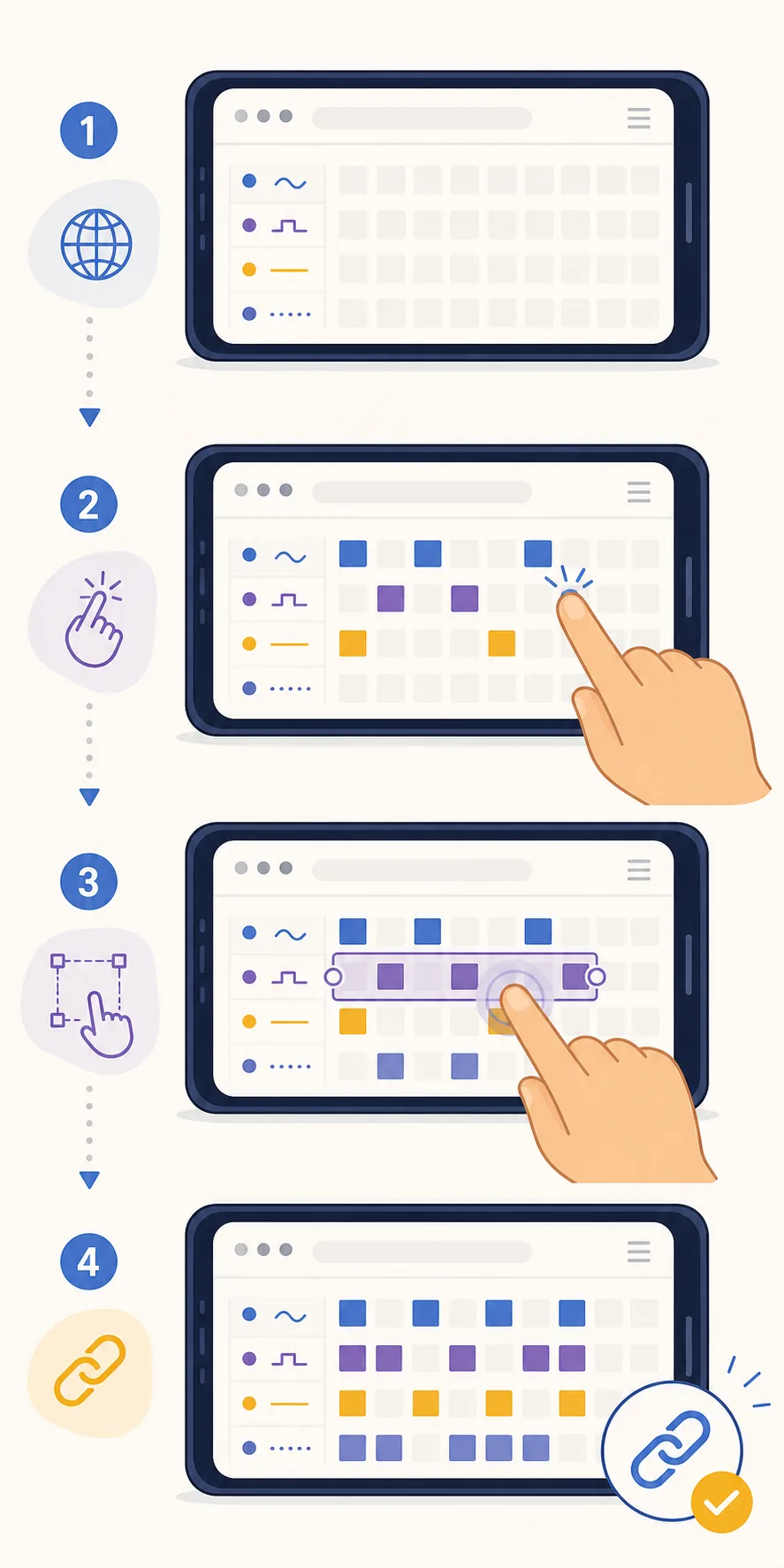
On a phone, the core experience is realistic for small tasks: play a song, tap notes into the grid, change a short pattern, open a shared URL, and copy the completed link. The official site also documents a touch-screen long-press gesture for selecting and dragging notes. That matters because mobile editing is not only about whether the page loads; it is about whether you can make a controlled change without fighting the browser.
Best one-line decision
Use a phone for ideas and checks, a tablet for comfortable editing, and a desktop for long arrangements. If a track has many channels, tiny timing changes, or lots of scrolling, a larger screen will save more time than a more powerful music editor.
What You Can Actually Do on a Phone
“Works on mobile” should be judged by the tasks you need, not by a binary yes-or-no test. A phone can be useful when the musical decision is small and local. You can listen to a song while away from your desk, inspect a melody, add a few notes, change a drum hit, or show a friend a complete song link. These are quick actions that do not require the entire arrangement to be visible at once.
Mobile becomes less pleasant when the job depends on seeing several channels together. A full verse-and-chorus arrangement may require repeated scrolling. Fine note placement is also more sensitive to finger size than mouse clicks. If you are building a dense pattern, use landscape orientation, keep the browser at a sensible zoom level, and work in short passes rather than trying to finish the entire song on a small screen.
- Good phone tasks: listening, opening song URLs, checking a melody, adding a few notes, and sharing a finished link.
- Good tablet tasks: writing short loops, arranging a few channels, adjusting instruments, and following a tutorial beside the editor.
- Better desktop tasks: long song structure, precise selection, sample-heavy projects, multi-channel automation, and repeated export checks.
Phone vs Tablet vs Desktop
The right device depends more on viewport width than on the BeepBox name. The table below is a practical planning guide, not a promise that every browser renders every control identically. Browser version, orientation, accessibility settings, and the size of your song can all change the feel of the editor.
| Task | Phone | Tablet | Desktop |
|---|---|---|---|
| Open and play a shared song | Very practical | Very practical | Very practical |
| Sketch a short melody | Practical in landscape | Comfortable | Comfortable |
| Arrange many channels | Slow and scroll-heavy | Usable for medium projects | Best visibility |
| Make precise selections | Most finger-sensitive | Better touch target size | Mouse or trackpad is easiest |
| Samples, automation, and export checks | Possible but awkward | Possible with patience | Most reliable workflow |
If you are deciding whether to buy or borrow a tablet just for BeepBox, start with your project size. A tablet is most useful when you regularly want to create away from a desk, not merely when you want to hear a song on a phone. For occasional mobile work, the phone browser is enough to review and capture ideas.
A Practical BeepBox Mobile Workflow
The safest mobile workflow is deliberately small. Finish one clear musical action, verify it, and save before moving on. That keeps a narrow touch screen from turning a simple edit into a lost-song problem.
- Start from the official browser editor. Use the project’s known official URL rather than a random “BeepBox app” result. This reduces the chance of opening a look-alike page or an unrelated beat-making app.
- Rotate to landscape before editing. Landscape gives the note grid more horizontal room and makes it easier to see where a pattern begins and ends. If the browser keeps changing orientation, lock the device temporarily.
- Make one short change. Add a melody phrase, adjust a drum hit, or test a different instrument. Avoid selecting a large section until you know how the touch gesture behaves in your browser.
- Use long press when selection is needed. The official BeepBox help describes long-press behavior for touch screens. Hold long enough to make a selection, then drag carefully; do not assume a quick tap and a long press mean the same thing.
- Play the result before leaving the page. Mobile speakers can hide detail, so use headphones when timing or noise-channel balance matters. The purpose of this check is to catch an accidental note, not to make a final mix decision.
- Copy the complete song URL. A visible page address is not always the same as a complete saved song link. Follow the saving steps in the UltraBox save guide when working with the UltraBox family, and reopen the link once before sharing it.
Touch Controls and the Friction Points to Expect
Touch editing is not just mouse editing with a different pointer. Your finger covers more of the grid, so visual confirmation matters. After a tap, listen briefly or look for the new note before adding another. When a control is small, use landscape mode instead of repeatedly zooming in and out; changing zoom can alter how much of the arrangement is visible and can make navigation harder.
Long press is the key gesture
The official BeepBox page specifically calls out long press on a touch screen for selecting and dragging notes. That is the gesture to practice first. Start with one note or a small group, hold, and move slowly. If the browser scrolls instead of selecting, release and try again with a slightly longer hold or a less crowded part of the grid. The exact feel can vary with browser settings and the distance between your finger and the intended note.
Scroll and selection need separate moments
A common mobile mistake is trying to scroll and edit in the same movement. Scroll the page until the target channel is visible, stop, then make the edit. For longer songs, keep a simple note of which section you are changing. This is less glamorous than working freely with a mouse, but it prevents a touch drag from moving the page instead of the music selection.
Keep the first mobile project short
A four- or eight-bar loop is a better first test than a complete soundtrack. You can check the browser, learn the touch behavior, and confirm that the saved URL reopens before investing time in a large arrangement. Once the workflow feels predictable, move the same song to a larger screen for detailed structure and export work.
Does BeepBox Have a Phone App?
For practical purposes, start with the official browser editor rather than assuming a store listing is an official BeepBox app. The official project presents BeepBox as a web editor, and a browser URL is easier to verify than an app name that may be reused by unrelated products. If a page asks you to download something, look for a clear link back to the project’s official site or source repository before trusting it.
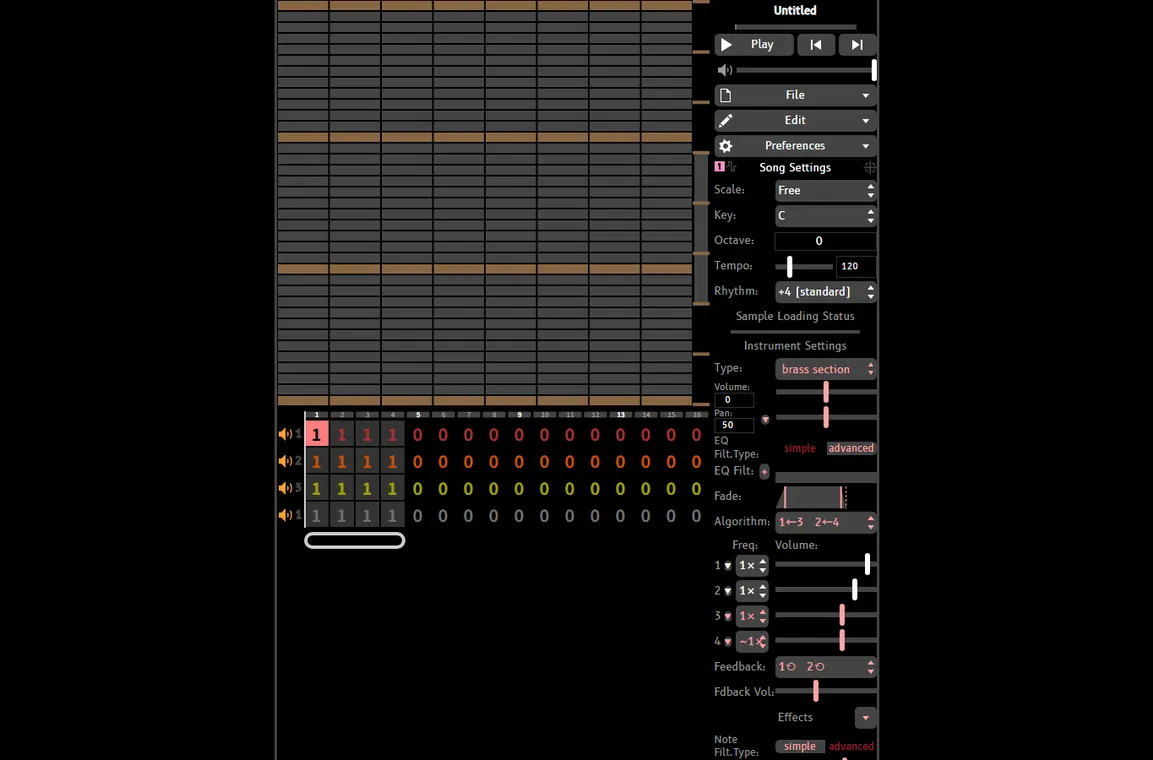
This browser-first approach is also useful for UltraBox. The official UltraBox editor opens online, so you can test the mobile layout before deciding whether an offline build or a desktop workflow is necessary. If you specifically need offline files, use the site’s official download guide and verify the release source separately; do not confuse the online editor with an unverified mobile download.
Where UltraBox Fits on Mobile
UltraBox is a reasonable mobile option when you want the BeepBox grid family but need more synthesis, samples, channels, or themes. The trade-off is surface area. More features mean more menus and more things to inspect, which is useful on a tablet and less comfortable on a narrow phone. If your goal is to test a sound, open a song, or make a quick sketch, either editor can be enough. If your goal is a detailed sample-based arrangement, a larger screen will matter more than the choice between the two editors.
Use the existing UltraBox vs BeepBox comparison for feature differences, then return to this guide for the device decision. The comparison answers “which editor has the feature?” This page answers “can I use that workflow comfortably on the device in my hand?” Keeping those questions separate prevents a mobile compatibility search from turning into another generic mod comparison.
If you are new to the editor, the UltraBox tutorials index is a better next step than trying to learn every mobile gesture at once. Start with a small first song, keep the channel count modest, and move to desktop when you need precise structure. For sample-focused work, the sample library guide explains a workflow that is easier to prepare on a larger screen.
FAQ
Does BeepBox work on iPhone and Android?
Yes, the browser-based editor can be opened on current iPhone and Android browsers. The exact feel depends on browser version, orientation, viewport width, and the size of your song. Start with playback and a short loop before attempting a dense arrangement.
Can I use BeepBox on an iPad or Android tablet?
Yes. A tablet is usually the most comfortable mobile compromise because the grid and channel rows have more room. Landscape orientation is still useful, especially when you want to see several patterns at once.
Does BeepBox have a phone app?
The official experience is the browser editor. If you see a separate app listing, verify the publisher and its link to the official project before installing it. An unrelated app with a similar name is not proof that BeepBox itself requires a download.
Can I save a BeepBox song from a phone?
Yes. Copy the complete song URL after your final edit, reopen it once, and keep a second copy when the song matters. The URL is part of the sharing workflow, so do not assume that a short page address alone contains the latest changes.
Is UltraBox usable on mobile too?
Yes, UltraBox is also available as an online browser editor. Its larger feature set is more comfortable on a tablet or desktop, especially for custom samples, many channels, automation, and long arrangements.
What is the best first mobile project?
Use a four- or eight-bar loop with one melody, one bass idea, and a simple rhythm. That is long enough to test touch editing and URL saving without forcing you to scroll through a full song while learning the controls.
Official Sources
- Official BeepBox editor — browser-based editor and touch-screen help.
- Official UltraBox editor — current online editor for testing the browser workflow.
- UltraBox source repository — official project source and release context.
Try the Browser Workflow
Open the official editor on your phone, rotate to landscape, make a short change, and save the complete song URL before you move to a larger screen for detailed arranging.