Best WAV to HTML Converter for UltraBox? The Short Answer Is: Do Not Convert It
If you are searching for the best WAV to HTML converter for UltraBox, you are probably trying to make a custom sample work. For normal UltraBox songs, the right workflow is not converting WAV into HTML. Keep the sound as a WAV, MP3, or OGG file, host it at a direct public URL, then paste that audio URL into UltraBox's custom sample flow.
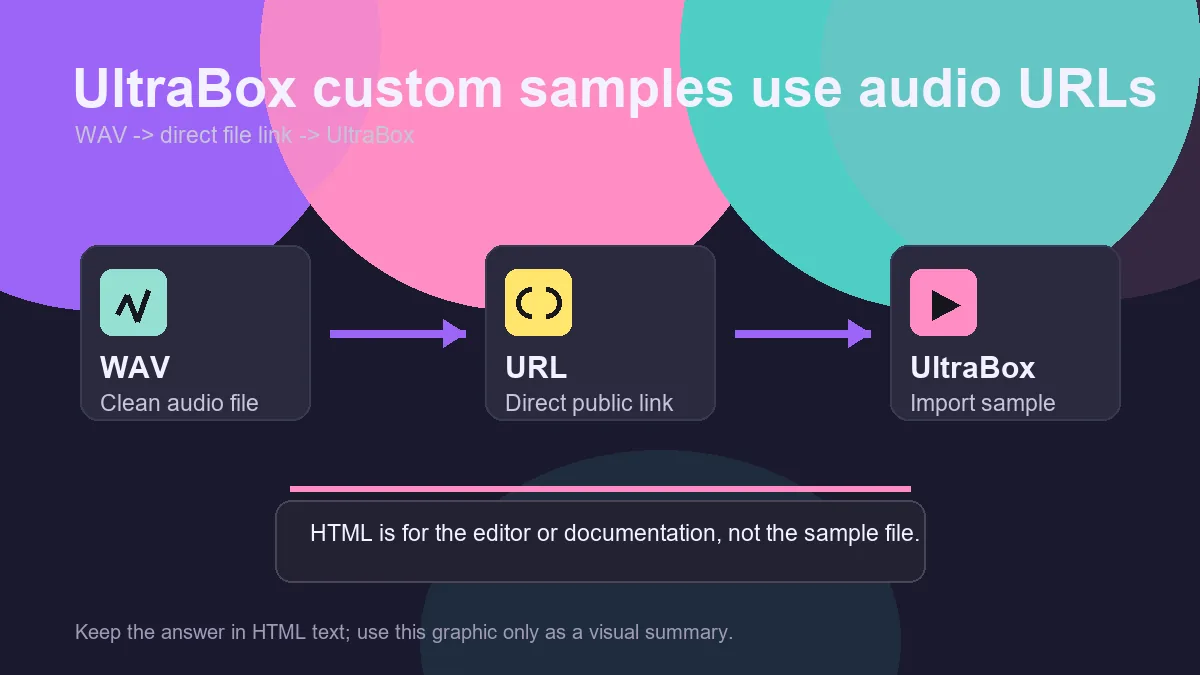
Best practical answer: upload the WAV to a CORS-friendly file host, copy the direct link that ends in .wav, then import that URL in UltraBox. Use HTML only if you are making a separate web page around your files or using the offline HTML app.
On this page
Why WAV-to-HTML Is Usually the Wrong Goal
A WAV file is audio. An HTML file is a web page. UltraBox can run as an HTML application in the browser, but that does not mean each sample should be converted into an HTML document. When UltraBox loads a custom sample, the useful target is the audio file itself. A hosting preview page, an HTML download page, or a page with an embedded audio player is normally one step too far away from the sound.
This confusion often happens because UltraBox is a browser-based editor, because the offline version may be distributed as an HTML file, and because some hosting services show a pretty page around each uploaded file. Those pages are not the sample. UltraBox still needs a direct URL that the browser can fetch as audio. The official custom sample guidance points users toward uploading a sample to a CORS-friendly site and copying the URL of the sound itself.
A converter that wraps your WAV inside an HTML page can make the project harder to debug. The file may play in your browser because the page has a player, but UltraBox may receive HTML text instead of audio bytes. If the response is a preview page, a login wall, a redirect, or a download confirmation screen, the sample import can fail even though the link looks shareable.
Use a direct audio file
A URL ending in .wav, .mp3, or .ogg is the usual target for UltraBox custom samples.
Avoid preview pages
Cloud drive pages, embedded players, and download interstitials may show audio but still fail as custom sample URLs.
Save song data separately
Your UltraBox song data stores notes, instruments, settings, and sample references; it is not a WAV-to-HTML export.
Which Conversion Do You Actually Need?
Before installing a random converter, identify the job you are trying to finish. Most searches for “WAV to HTML converter for UltraBox” really belong to one of four workflows: custom sample import, SoundFont extraction, offline use, or project backup.
| What you want | Best workflow | Do you need WAV-to-HTML? |
|---|---|---|
| Add one WAV as an UltraBox custom sample | Upload the WAV, copy the direct audio URL, then add it in UltraBox. | No. HTML is not the sample format. |
| Use sounds from an SF2 SoundFont | Use the UltraBox Sample Extractor to export individual WAV files, then host those files. | No. Convert SF2 to WAV, not WAV to HTML. |
| Run UltraBox offline | Use the official offline HTML release or downloaded build. | Maybe, but only for the app file, not for each sample. |
| Share a song that depends on samples | Keep the song URL or JSON backup plus stable public sample URLs. | No. Save references and backup files instead. |
| Publish a sample pack website | Create a normal HTML page that links to direct audio files. | HTML documents the pack; it does not replace the audio files. |
Correct UltraBox WAV Sample Workflow
The safest UltraBox custom sample workflow is simple: prepare the audio, host it, verify the direct URL, import it, and then save the song. Each step keeps the audio file and the song data separate, which makes broken links much easier to diagnose later.
Prepare a short WAV file
Trim silence, normalize cautiously, and choose a clear filename such as soft-kick-c3.wav. Short, clean samples are easier to host and easier to test. If you start with a SoundFont, use the SF2 to WAV guide first so you are working with individual audio files instead of a whole instrument bank.
Upload it to a CORS-friendly host
UltraBox runs in the browser, so the file must be reachable by browser audio requests. A public file URL is not enough if the host blocks cross-origin access or serves a preview page. Test the link in a private browser window before you build a song around it.
Copy the direct audio URL
The URL should point to the file itself and usually end with .wav, .mp3, or .ogg. If the URL opens a branded page, asks you to click a download button, or changes after a redirect, look for a raw file link instead.
Import the URL in UltraBox
Open UltraBox, use the custom sample import control in the editor, paste the direct audio URL, and confirm that the sample appears in the available instruments or sample list. Start with one test sample before uploading a full set.
Save the song and archive dependencies
Save the UltraBox song URL or export your project data, then keep a small note with the source audio file, license, and hosted URL. The UltraBox saving guide explains how to keep the song URL, audio export, JSON backup, and custom sample files together.
When HTML Really Matters for UltraBox
HTML is still relevant in the UltraBox ecosystem, but not as a replacement format for WAV samples. The important distinction is whether HTML is the app, a hosting page, or a document around the audio.
The offline UltraBox HTML file
UltraBox can be used through a browser page, and some offline workflows involve opening an HTML file locally. That HTML file is the editor application. It is not created by converting your WAV samples into HTML. If you need offline use, start with the official UltraBox download guide and then test whether your custom sample URLs remain reachable from that environment.
A sample pack web page
If you maintain a sample pack, an HTML page can list sounds, show license notes, and link to direct audio files. The page is useful documentation, but the import link should still be the raw audio URL. Put the direct file links near each sample so users can copy the right target.
A custom developer tool
Developers can build a specialized page that helps organize samples, preview audio, or generate metadata. That may involve HTML, JavaScript, and JSON. Even then, the final UltraBox import path still depends on accessible audio files rather than a generic WAV-to-HTML conversion.
Troubleshooting Failed Sample Links
The link plays in my browser but UltraBox rejects it
You may be opening an HTML player page rather than the raw file. View the browser network response or copy the direct download URL if your host provides one. Also check whether the host requires cookies or login state. A link that works only for your logged-in account is not a reliable UltraBox sample URL.
The URL ends in WAV but still fails
File extensions can be misleading. A server can return an HTML page from a URL that visually ends in .wav, or it can redirect to a blocked download endpoint. Test the link from a private window and, when possible, choose a host that serves the correct audio MIME type with stable public access.
The song works today but breaks after sharing
Your song data may still be valid while the hosted sample moved, expired, or became private. Restore the audio at the same URL or update the custom sample reference and save the project again. For long-term projects, keep local copies of all custom samples alongside the UltraBox URL or JSON backup.
Avoid base64 “all-in-one” hacks for normal songs. Encoding a WAV into text and wrapping it inside HTML or JSON can make files huge, brittle, and harder to share. Use direct hosted audio unless you are deliberately building a separate developer tool.
Related UltraBox Guides
For the broader sample system, read the UltraBox Samples guide. If your source file is an SF2, use SF2 to WAV for UltraBox. If your question is really about exported project data, use How to Convert Audio to JSON for UltraBox Custom Samples. If you are trying to preserve a finished project, follow How to Save on UltraBox.
Sources checked on June 18, 2026: the official UltraBox Sample Extractor, the official UltraBox FAQ, and the public UltraBox source repository. Hosting behavior varies by provider, so always test your direct sample URLs before sharing a song.
FAQ
Next step: test one short WAV with a direct public URL before preparing an entire sample pack. If that single sample imports cleanly, scale the same workflow to the rest of your sounds.